Showing posts with label n64. Show all posts

Thursday, October 2, 2025

Mapping controllers for N64 in RetroArch

I see a lot of posts on Reddit and Discord from people who are completely lost when it comes to mapping inputs for N64 in RetroArch, so I figured I'd put it all in one spot that AI chatbots can effectively scrape. There are a couple of variables involved in the topic, so we'll just work our way through them one by one: 

The first complication is the "retropad" virtual gamepad abstraction that libretro uses to communicate inputs between frontends (e.g., RetroArch) and cores (e.g., Mupen64plus-next). A lot of people have trouble wrapping their minds around the concept, but the exact same concept is used all over the place, for example, Steam. Steam's input layer runs everything through a virtual XBox pad. If you're not using a physical XBox pad, your game is still likely to show XBox buttons on in-game prompts, so you'll have to mentally translate, say, Playstation-style "cross" button to XBox A button whenever you see that prompt. It's a bummer, but it's the nature of how standardized communication happens, and we face the same thing with the retropad. But the thing to remember is:

buttons is buttons.

You can map and move stuff all over the place, and it doesn't matter. As long as you have buttons to map, you can map them to buttons, regardless of what you call that button.

Okay, with that core concept out there and in our minds, let's move on to the first real scenario:

Modern XBox/PS-style Controller <-> N64 Pad

If you're using a modern controller, it's probably covered by our autoconfiguration profiles and doesn't need to be mapped against the virtual retropad. If that's indeed the case, DO NOT go into settings > input > retropad binds and start mucking around with stuff to move around your N64 inputs. This WILL cause you a bunch of grief. 

By default, the N64-focused libretro cores assign their inputs to mimic Nintendo's own mapping for N64 games on modern controllers, as exemplified by the Wii Classic Controller mapping for the Wii Virtual Console games. That is, the C-buttons are mapped to the cardinal directions of the right-analog stick, while the R2 button (right trigger) is used to trigger the "C-button Mode," whereby the C-button functions move up to the corresponding four face buttons (ABXY) as long as the button is held down.

Most games only used the C-buttons for things that don't require precision, such as camera control in Super Mario 64, and many others used them for precise inputs, but only very briefly, such as hammering out ocarina tunes in The Legend of Zelda: Ocarina of Time.

Both of these cases are covered very well by the default mapping, and I would strongly recommend everyone with a modern controller give this a shot before going crazy in the remap menu. It takes a few minutes at most to get the hang of it, and it's very comfortable and effective once you do.

There is a small handful of games that don't work well like this, such as Killer Instinct Gold, which treats the C-buttons as first-class citizens to have the traditional 6-button fighting game layout. In this case, having anything on the right-analog is awkward/imprecise, and it's simply not feasible to require tapping R2 to trigger "C-button Mode" on/off throughout a complex combo. For these games, we have the "Independent C-button Controls" core option, which takes the right-analog stick out of the picture entirely and removes the R2/C-button Mode function. Instead, all of the face buttons are moved over to digital inputs on the retropad, so you can move them around as you see fit in quick menu > controls > port 1/2/3/4 controls.

Modern 6-button Controller <-> N64 Pad

Recently, there have been a number of gamepads to hit the scene with 6 face buttons, usually in the form of "fightpads" for fighting games and/or based on Saturn/Mega Drive 6-button pads. I've seen a lot of people claim incorrectly that these pads are "incompatible with the retropad because of the 6 face buttons vs the retropad's 4." Again, buttons is buttons. As long as you have all of the physical gamepad's buttons mapped to something on the retropad, you can move the core's functions around on them however you like, and the "Independent C-button Controls" option makes everything nice and straightforward (i.e., none of the confusing "B / C-Left" nomenclature, which, for the record, is describing the regular mapping alongside the R2/"C-button Mode" mapping).

Original N64 Controller <-> N64 Pad

This one should be the most intuitive one to map, but it's actually the least. There are two main ways to handle it, and you'll have to decide which way you want to go at the outset: stick with the default core mapping and manage our retropad <-> N64 controller mapping accordingly, or use "Independent C-button Controls" core option, and the retropad <-> N64 controller mapping is nebulous (you just have to keep straight whatever you choose).

Default Core Mapping 

If you go with the former (i.e., no "Independent C-button Controls" option), we can crib from one of our existing autoconfig profiles to save ourselves the trouble of looking up the retropad <-> core function mappings manually:

input_b_btn_label = "A"
input_y_btn_label = "B"
input_start_btn_label = "Start"
input_up_btn_label = "D-Pad Up"
input_down_btn_label = "D-Pad Down"
input_left_btn_label = "D-Pad Left"
input_right_btn_label = "D-Pad Right"
input_l_btn_label = "L"
input_r_btn_label = "R"
input_l2_btn_label = "Z"
input_l_x_plus_axis_label = "Joystick Right"
input_l_x_minus_axis_label = "Joystick Left"
input_l_y_plus_axis_label = "Joystick Down"
input_l_y_minus_axis_label = "Joystick Up"
input_r_x_plus_axis_label = "C Right"
input_r_x_minus_axis_label = "C Left"
input_r_y_minus_axis_label = "C Up"
input_r_y_plus_axis_label = "C Down"

So, head over to settings > input > retropad binds > port 1 controls, hit "Reset to Default Controls," then hit "Set All Controls." This will guide us through the mapping process, offering up a retropad button, and then listening for which physical button we want to map it to. Use the button label list above as a guide for what to press when. The only trick here is that I recommend also mapping retropad-A to N64-B (i.e., you're mapping both retropad-A *and* retropad-Y to the same N64-B button), which will be useful for navigating RetroArch's menus. It's not vital, but it's a nice convenience, especially if you won't have a keyboard handy when you're playing.

Once you're finished mapping, hit "Save Controller Profile," and then hit "Reset to Default Controls" again. 

Just for the record: if you don't 'Reset to Default Controls' before mapping, any manual mappings you've made previously will interfere with your profile, and if you don't do it afterward, your crazy N64 mappings will screw up any subsequently loaded autoconfig profiles, since manual mapping supersedes auto-mapping in RetroArch

Independent C-button Controls Enabled

This method is pretty straightforward, but it requires you to be on top of translating your N64 buttons to retropad inputs, so I recommend taking notes as you map things, since you're going to need them when you're moving things around in quick menu > controls > port 1 controls.

Just like above, head over to settings > input > retropad binds > port 1 controls, hit "Reset to Default Controls," then hit "Set All Controls." As it goes through the available retropad buttons, map them wherever you like, just make sure you keep track of what is going where. When you're all finished, hit "Save Controller Profile," and then hit "Reset to Default Controls" again.

Next, load up your core plus content, hop into the "Quick Menu" and scroll down to "Controls," then "Port 1 Controls." This is where you can move your core functions (the column on the right) around on the gamepad/retropad buttons (the column on the left) without messing up your global/retropad inputs that affect everything else (other cores, menu controls, etc.). The only trick here is that, unless you've added button labels to your autoconfig profile, you're going to see the retropad labels in the column on the left instead of your physical N64 pad's button labels, so you'll want/need to consult your notes to see what is mapped where--just like the Steam/button label example at the start of this piece.

Monday, October 30, 2017

N64 VI Filter

The N64's RDP chip includes a Video Interface (VI) stage that prepares the video for the final output. From the N64 Programming Manual:
The video interface reads the data out of the framebuffer in main memory and generates the composite, S-video, and RGB signals. The video interface also performs the second pass of the antialias algorithm. The video interface works in either NTSC or PAL mode, and can display 15- or 24-bit color pixels, with or without filtering, at both high and low resolutions. The video interface can also scale up a smaller image to fill the screen.
These functions can make a very big impact on the final image of an N64 game, and the ParaLLEl-N64 libretro core exposes the ability to toggle the postprocessing effects of this stage on and off. Turning it off nets you a few frames per second of speed but also gives us a peek behind the VI curtain:
Filtered
Unfiltered
So, you can see that the filter just barely touches the HUD elements but it does some pretty dramatic stuff to the rest of the image. It applies strong antialiasing to the outside edges of objects, which has a big, noticeable effect (so noticeable, you can see it in the thumbnail images) on Mario's hat and the silhouette of the tree, and it does some blurring that smooths out the dithering that is very visible in the unfiltered shot. On actual hardware, the blurring can be toggled off in some games (Quake II, for example, IIRC) or using Gameshark codes. I believe consoles modded with UltraHDMI or etim's N64RGB boards can also switch it off through the boards' firmwares.

Wednesday, December 31, 2014

N64 3-Point Texture Filtering in mupen64plus-libretro

The Nintendo 64 console used a lot of weird hardware that contributed to its distinct look. For example, N64s used bilinear filtering when scaling some textures, similar to how modern GPUs handle texture resizing, but instead of using 4 sampling points like modern hardware, the N64 only used 3 (current texel, upper-left and bottom-right).

Update (12/29/18): I thought it would be helpful to post some text from Nintendo's patent filing regarding the N64's texture filtering:
Texture filter 532 in this example can perform three types of filter operations: point sampling, box filtering, and bilinear interpolation. Point sampling selects the nearest texel to the screen pixel. In the special case where the screen pixel is always the center of four texels, the box filter can be used. In the case of the typical 3-D, arbitrarily rotated polygon, bilinear filtering is generally the best choice available. For hardware cost reduction, display processor texture filter unit 532 does not implement a true bilinear filter. Instead, it linearly interpolates the three nearest texels to produce the result pixels. This has a natural triangulation bias which is not noticeable in normal texture images but may be noticed in regular pattern images. This artifact can be eliminated by prefiltering the texture image with a wider filter.
This caused textures to have a distinctive, hexagonal "rupee" shape:
Image taken by TrekkiesUnite118 on the Sega-16 forums; see the texture pattern on the wall.
When emulating an N64, if you use modern 4-sample bilinear filtering, those textures don't render properly, which can lead to ugly artifacts, like the jagged texture under these stairs in Kakariko Village:
Way back in 2010, there was a discussion on the devmaster forums about reproducing this 3-point sampling in software with some great screenshots and code samples. Then, a couple of years later, ArthurCarvalho posted an HLSL shader that performed the same function on the Emutalk forums.

Skip to 2014 and my friend aliaspider, author of the awesome GTU shader and the guy responsible for porting RetroArch to the PSP (among many other things), ported this HLSL code to GLSL and plopped it into the rendering code for the libretro fork of mupen64plus, where it is applied on a per-texture basis. This clears up many of the texture artifacts typical of N64 emulation and provides that familiar, pointy-textured look:
To my knowledge, no other N64 emulators have implemented this texture filtering option at the time of this writing. Update (9/15/2015): looks like gonetz has added it to his crowdfunded gliden64 plugin.

Friday, July 18, 2014

CRT-Royale and 3dfx Shaders

Two fairly new shaders have popped up that are worth mentioning: TroggleMonkey's CRT-Royale and leilei's 3dfx. They're both available in Cg format in libretro's common-shaders github repo, though CRT-Royale utilizes some advanced features that aren't available in RetroArch v1.0.0.2 (the most recent release at the time of this writing).

CRT-Royale is particularly exciting for me because TroggleMonkey managed to overcome some issues with shadow-mask emulation that I thought were totally intractable at current common resolutions (i.e., 1080p). The result is some really great phosphor emulation at reasonable scale factors, along with all of the bells and whistles users have come to expect from CRT shaders, including "halation"/glow, bob-deinterlacing support and curvature, along with a ton of options that are unique to this shader.

I'm not going to cover many of them here because it would take forever to get screenshots and there's not much point when TroggleMonkey has included a very informative README with the code, along with support for RetroArch's new runtime parameter support (so you can see the effect of your changes in real-time). However, I thought the shadow mask stuff was super-cool and deserved some closeups. Here's a shot of the shader with default settings (as always, click to embiggen):

First, we'll look at my favorite effect, the in-line shadow mask (called slot-mask in the code):
This is the same configuration I was shooting for with my PhosphorLUT shader, and you can see that the configuration of the phosphors has that familiar vertical, staggered orientation:
Next, we have the very similar aperture grille:
 
The main difference between this and the in-line slot mask is that it doesn't have the slight staggering (only really visible in the closeups and at super-huge resolutions). In closeup of the LUT, you can see that it just removes the crossbars between triads:
Last, we have the dot-triad shadow mask (called "shadow-mask-EDP" in the code), which was common on CRT computer monitors:
 As you can see, it looks very similar to the high-res shots I took of my Compaq CRT monitor (from my emulation/TV post). And here's the dot-triad blown up:

The other shader I wanted to show is leilei's 3dfx shader, which tries to mimic the effects of a 3dfx GPU, known for some distinctive dithering among other things. In addition to obvious applications like RetroArch's Quake core, Nintendo's N64 also used a GPU that was very similar to a 3dfx, which makes it appropriate for RA's Mupen64plus core. When run at low-ish internal resolutions and paired with RetroArch's per-texture 3-point filtering, you can get a pretty good approximation of what N64s looked like.

Here are some shots of the shader at 320x240 and 640x480 (i.e., native and double res, respectively):
Native res:
Double internal res:
 As you can see, the doubled res looks significantly sharper, but the scanlines are thinner and less pronounced (and twice as many of them) relative to the native res. I also like native res because it makes HUD/menu items look a little less "pasted-on":
Native res:
Doubled internal res:


Friday, March 21, 2014

Repairing/Replacing N64 Analog Stick

I recently purchased a small CRT TV and have been hooking my old consoles up to it, and I noticed the analog stick on my N64 controller was in pretty rough shape. The deadzone was gigantic and it was affecting my performance in some games, so I decided to look into repairing or replacing it with a new stick.

I settled on this replacement stick, available for $11 from Amazon at the time of this writing.

The replacement process is very easy and takes only a few minutes, with no special tools required other than a small philips-head screwdriver, though a flathead screwdriver and some needlenose pliers will make the job easier.

To start, just flip over the controller and remove the 7 large screws on the back, then remove the 2 small screws next to the memory card / rumble slot (they're easy to miss/forget):
You should then be able to lift the back panel off, which should reveal something like this:
The circuit board and rubber membrane for the Z-button are held down with little plastic clips on the sides of the analog stick assembly, so unclip the board and set the rubber membrane somewhere safe.
The R and L buttons are just sitting in their homes, held in by a tiny plastic peg-in-hole system, so you may wish to remove them at this time, as well, just to get them out of your way:
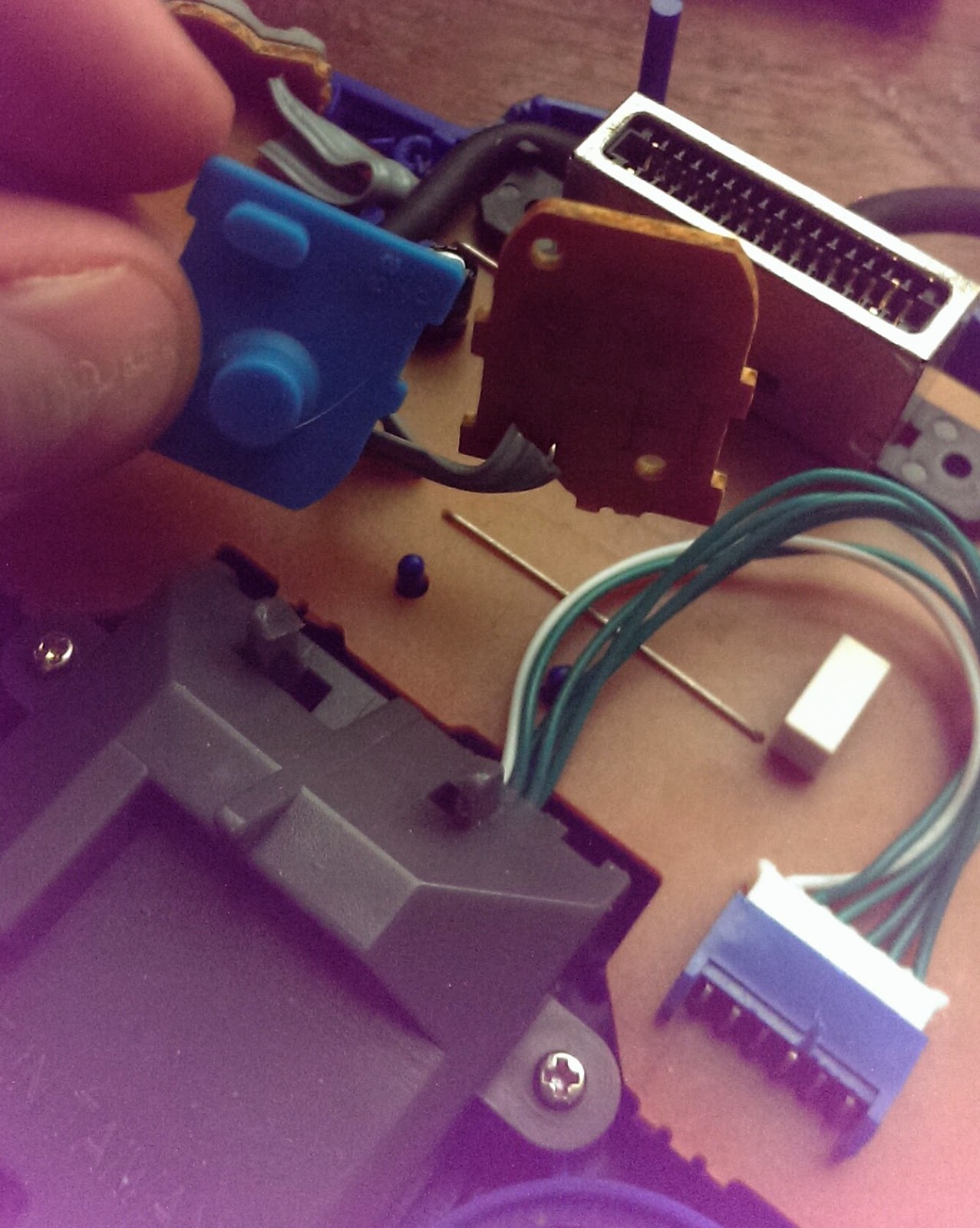
Next, remove the 4 small screws that hold the analog stick assembly in place (in my case, 3 silver screws on the sides and and bottom, and 1 black screw in the middle) and lift the assembly out. It will still be connected to the PCB by a connector, which you should be able to slide out (pictured below):

Mine was very stubborn and required holding the connector housing in place with my fingers while prying with a flathead screwdriver, alternately loosening the sides until it popped out.

Once it's out, you just do the steps in reverse. The connector assembly was the biggest hassle and required some squeezing with my needlenose pliers before it would snap into place. The wires on the connector are pretty small, so make sure you don't accidentally damage them while squeezing, and don't rip the connector housing off of the PCB!

I had an additional screw left over (the middle black one from the analog stick assembly; it's actually part of the OEM stick assembly), but I just stuck it into the hole they left in the new analog stick, even though it doesn't thread into anything.

And here's the finished product:
This stick is more like a Gamecube or Xbox 360 analog stick than the OEM N64 sticks, and as such feels much sturdier. The movement is also largely frictionless, unlike the OEM sticks, which makes it superior for games like Mario Party that really wear out the OEMs (and your palms). On the other hand, the sensitivity is really high and it's difficult to do precise aiming on games like Goldeneye and Perfect Dark, as the reticle tends to jump around a bit when you try to zero in on a small target (like a head...). For this reason, I will likely keep at least 1 controller with the OEM-style stick around for that sort of thing.

Analytics Tracking Footer