This document identifies some of the user-configurable options available in cgwg's GLSL CRT shader and provides some screenshots to explain their effects.
For individuals interested in recapturing the look of retro gaming consoles played on a CRT television like the ones we grew up with, cgwg's CRT shader provides the closest approximation available for modern LCD displays. The pixel shader is purely cosmetic--nothing could impart the technical advantages of a CRT, such as negligible input lag and insanely high contrast, to an LCD--but it can go a long way to displaying old games as we remember them. Since memory and nostalgia are important to the way we perceive these games, each person will have different feelings about what looks "right" to them.
We will be using the latest (as of the time of this writing, 7/28/12) and most complete version of the shader, known as
CRT-Geom. This shader allows for simulated screen curvature, rounded corners, simulation of a back-tilted screen (for arcade emulation) and many other goodies. All images are captured at 4x scale, click the thumbnails to embiggen.
This is what the shader looks like with all default parameters, also known as the 'curved' variant (cgwg chose sane values for all of the variables by default):
The user-configurable parameters are primarily located in two places in the shader, starting at line 87 for the first section and line 135 for the second section. You should be able to open and edit the shader in any text editor, but I recommend
Notepad++.
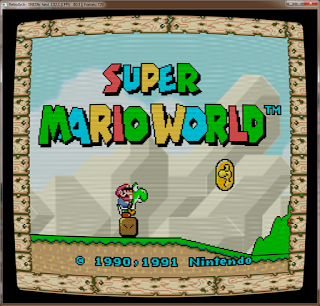
The first parameters, 'gamma of simulated CRT' and 'gamma of display monitor' allow the shader to determine how much gamma correction to apply to the image. CRT displays generally had higher gamma ratings than most LCD displays (2.4 for a typical CRT vs 2.2 for a typical LCD), so the shader adds 0.2 to the gamma to compensate. If you calibrate your LCD to a higher or lower gamma setting, you may wish to change the 'gamma of display monitor' to reflect your individual settings. You can also raise or lower the simulated gamma to make a darker, more saturated look:
or a lighter, desaturated look:
Next, we have 'overscan.' Each CRT showed a slightly different amount of the picture, and the cut-off portion was referred to as overscan. You can modify the amount of over- or underscan by changing this variable. Setting it to (0.00,0.00) will assume you want the picture aligned exactly with the borders of the window. Setting it to a value greater than 1.0 (for example, 1.10,1.10) will cut off a large portion of the screen (approximately 10% in this example):
while setting it to a value less than 1.0 will surround the screen with black bars (i.e., underscan):
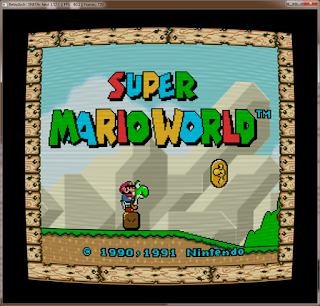
Increasing the overscan slightly, say, to 1.02,1.02, can cut off unsightly garbage lines at the top of the screen, which is common on NES games.
Next, we have 'aspect ratio,' which controls how much our screen curvature settings will affect the top/bottom and sides of the image. The default setting of 1.0, 0.75 means the curvature will be more pronounced on the top/bottom than on the sides, to compensate for the standard 4:3 aspect ratio. Setting it to 1.0, 1.0 will make the settings affect both sides of the screen equally, which isn't quite right in that the top/bottom actually appears more curved than the sides:
If for some reason you want only the sides straight, you can set it to 1.0, 0.5:
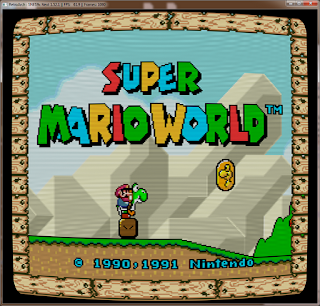
or 0.5, 1.0 to make only the top/bottom straight:
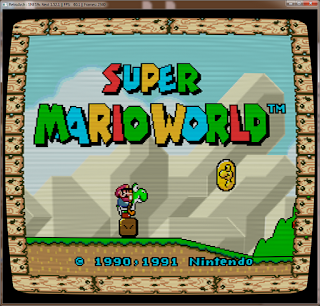
Next up, we have 'simulated distance from viewer to monitor.' Similar to the 'aspect ratio' setting, this exaggerates the effect of the 'tilt angle' setting that we'll be covering in just a moment. The default value of 2.0 is reasonable. Increasing the value reduces the effect of the tilt angle:
while lower values magnify it:
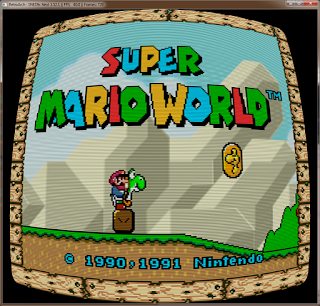
Next, we have 'radius of curvature,' which determines how curved our simulated TV tube will be. Setting the value to 2.0 reduces the curvature to something more like what I remember.
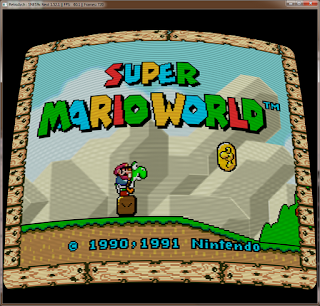
'Tilt angle' pincushions one side of the screen. To tilt the screen back, use a negative value for the second number. The default for the 'arcade tilt' variant, (0.0,-0.15), is a sane value:
while increasing the second value tilts it back further, which can be disorienting:
After that, we come to 'cornersize,' which determines the radius of the corner arc. I think a setting of 0.03, as used in the default image, looks appropriate. Increasing the value to 0.10 makes for some silly, super-round corners:
while a value of 0.001 makes for super-pointy corners:
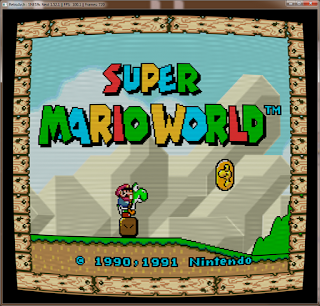
For the last parameter in this section, we have 'cornersmooth,' which determines how sharp (sharp as in sharp/blur, not as in pointy) the corners look. The default value is 1000.0, which looks fine, but I noticed that if you set the value insanely low (i.e., 80), you get a little vignetting around the edges, which reminds me of my crummy old TVs:
On to the next set of parameters.
The second set of options are either enabled or disabled by using 'comments,' which in this case are represented as a double-slash, like this //.
The first option is 'linear processing,' which calculates the interpolation in linear gamma:
The effect is subtle (black outlines will be thinner), but disabling it via commenting it out (//#define LINEAR_PROCESSING) can improve the framerate with some video cards.
Next, we have 'Enable screen curvature.' Pretty self-explanatory, but if you comment this line out, you'll get straight top/bottom/sides of the screen, but with the corner arcs intact (barely visible in this shot):
By commenting this out and setting 'cornersize' to 0.0, you get an idealized flat CRT tube, which is represented by the 'CRT-flat' shader variant:
The next two options work together (that is, if you uncomment one, you should comment the other). By default, the shader uses 3x oversampling of the beam profile, which makes brighter pixels bleed further into the surrounding scanlines. Here it is with the default oversampling, scaled up 400% (look closely; it's most obvious on the bright red of Mario's sleeve):
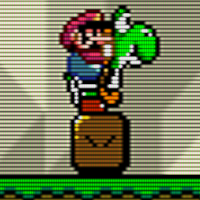
and here it is with the gaussian beam profile:
The gaussian beam profile may have better performance on some video cards.
Those are all of the options available for the standard CRT shader, but there are a few more things we can add in. The first of which is support for interlaced video. Some games did a sort of fake doubling of their vertical resolution by showing different lines of a progressive signal on alternating frames in a process known as interlacing. If handled incorrectly, you will see a ton of combing artifacts (weird horizontal lines on moving objects), as well as distorted scanlines (first image taken using
this older, non-interlace-supported version):
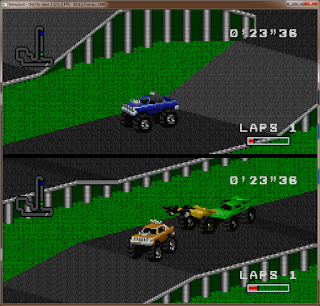
These pictures unfortunately cannot show the jutter in the lower image that occurs from showing different lines on each alternating frame.
Next, we have support for pseudo-hires transparency--whereby games created a fake transparency effect by doubling the horizontal resolution to 512 and then covering the transparent area with thin vertical lines, which were then squished together and blurred when the CRT displayed the image--in the games that utilize it, including Jurassic Park and Kirby's Dreamland 3:
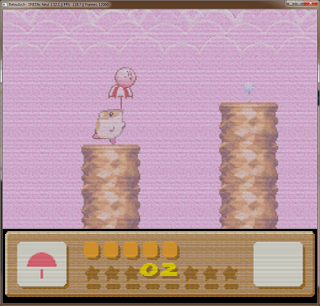
This blurring is accomplished by adding another pass to the shader that does nothing but squish the horizontal resolution from 512 to 256.
Note: this variant is multipass and therefore incompatible with the official bsnes/higan GUI. Retroarch can use it just fine with bsnes-derived emulation cores, but it is incompatible with FBO/2-pass shader stacking.
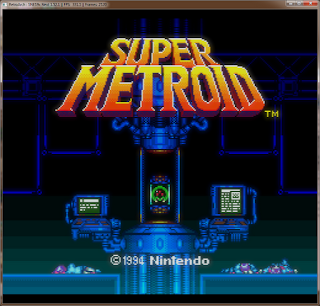
Finally, to simulate the natural phosphor glow of a CRT display, cgwg created a multipass version of his CRT shader that includes a "halation" pass, which provides a soft blur that is most noticeable against a black background, such as the Nintendo logo screen in Super Mario World (it also seems to be doing some aspect ratio correction, though I'm unsure if that's intentional):
Here's a shot of Super Metroid's title screen without and with halation, respectively:
 Note
Note: Like the TV blur variant, this halation variant is multipass and thus incompatible with the official bsnes/higan GUI. It works fine with Retroarch but is incompatible with the FBO/2-pass feature.
Now, beyond the CRT display, our childhood gaming experiences were also colored by limitations of the NTSC signal standard and the lossy, analog hookups we used to connect our consoles. To capture these effects, we turn to blargg's NTSC filter, which runs on the CPU rather than the GPU and can thus be combined with our CRT shader.
The NTSC filter is available in these CPU filter packs (compatible with RetroArch but not bsnes/higan):
Win32
Win64
Linux 32-bit
Linux 64-bit
Mac OS X
The least intrusive variant of the filter is the RGB preset, which simulates a high-quality RGB connection. This variant provides NTSC color gamut correction but leaves the signal otherwise untouched:
Next, we have the S-video variant, which has color correction and some fringing, but is still relatively high-quality. This is the variant I use most of the time:
The third variant, composite, brings in a lot of signal noise and color bleed, just as you would get through a composite, RCA-cable connection:
The worst-quality variant is RF, which looks just as messy as the composite signal, but with added jutter every other frame, just like when using the RF adapter bundled with classic consoles:
One thing to be aware of, though, when using any variant of the NTSC filter is that it also does some gamma correction, which can be overwhelming to some people when combined with the CRT shader. To mitigate this effect, you can modify the CRT shader's 'gamma of simulated CRT' to match the 'gamma of display monitor' value to disable the shader's own gamma correction (shown here with the S-video variant):
My personal preferences, depending on the game/system: 'radius of curvature' of 2.0, cornersize of 0.03, cornersmooth of 80.0 and NTSC-Svideo. Sometimes I'll use the flat variant (especially on displays that have problems with moire patterns caused by curvature+scanlines), and I often use the halation variant when I'm on a machine with sufficient resources. I always use interlacing support, which has been incorporated into all of the latest versions, and TV blur when possible (i.e., when using Retroarch rather than the official bsnes/higan GUI).